Coupa Supplier Portal (CSP)
Invoice policy and requirements: how to create an invoice/credit note and resolve a disputed invoice

CSP Overview
What is CSP?
Coupa Supplier Portal (CSP) is a no cost platform that makes it simple for suppliers to work with any customer that uses Coupa.
CSP gives suppliers one central hub for managing all their customer relationships and interactions, making collaboration and communication between suppliers and their customers smoother and more organized. Within the portal, suppliers can customize their settings and content separately for each customer they work with. This includes reviewing purchasing orders, configuring how they receive orders, building out product catalogs, submitting invoices and advance ship notices (ASNs), tracking the status of transactions, and handling a variety of other account-specific tasks.
CSP Key Terms
Menu Item | Description |
|---|---|
Home | View and improve your public company profile, see the list of customers you are connected to, edit your customer-specific company profile, and merge accounts. |
Profile | Create, modify, and manage your public and customer-specific profiles, and specify which remit-to addresses each customer can use. |
Orders | View the purchase orders you received from your customers. |
Service/Time Sheets | View the list of service/time sheets and related purchase order lines. |
ASN | Send advance ship notice, that is, notifications about when you ship items to your customers. |
Invoices | Create and manage invoices to send to your customers. |
Catalogs | Create and manage customer-specific catalogs. |
Payments | Accept payment through digital checks from your customers if they use Coupa Pay. |
Business Performance | View a summary of orders and invoices that may need attention, your year-to-date order and invoice trends, and your lead time to shipping goods. |
Add-ons | Access Coupa supplier add-ons, for example, Coupa Advantage, Early Payment Discounts, supplier profile update, and more. |
Setup | Manage users, merge requests, and remit-to addresses, set up electronic invoicing, add fiscal representatives, view and accept the Terms of Use, and set preferred early payment discount terms. |
CSP Profile
Create and Manage Your Profile
Suppliers have a public profile visible in the Coupa Supplier Portal Directory.
A summary of the profile appears on the CSP homepage.
- Manage records or access settings through Setup > Admin.
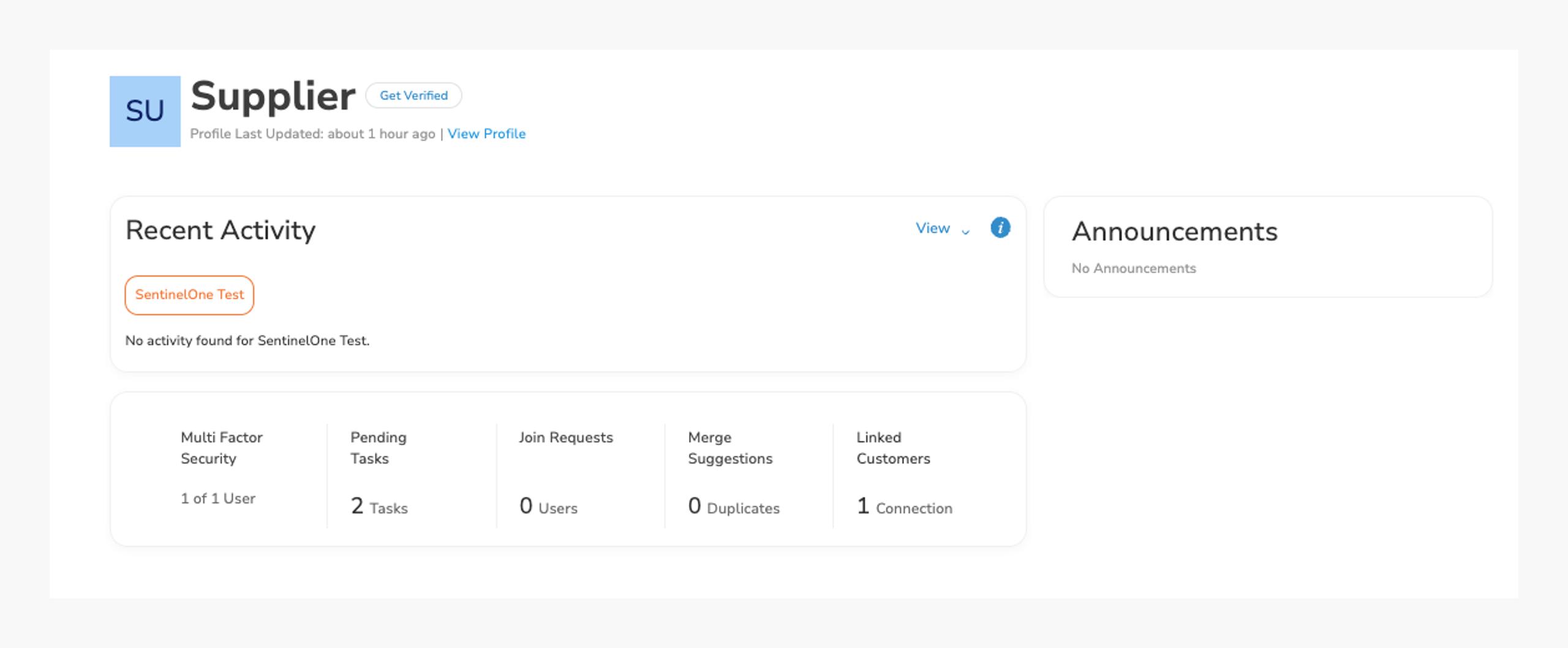
Create & Update Customer Profiles
A supplier's SentinelOne profile is created during onboarding. If onboarding was started but not completed, resume via Setup > Customer Setup > Finish Setup.
After setup, there are two ways to update a SentinelOne profile:
Setup > Customer Setup > Edit Your Setup: manage legal entity and remit-to accounts.
Profile > Information Requests > Profile: SentinelOne Inc. click Update Info at the bottom of the form to edit and resubmit for approval.
Manage Users
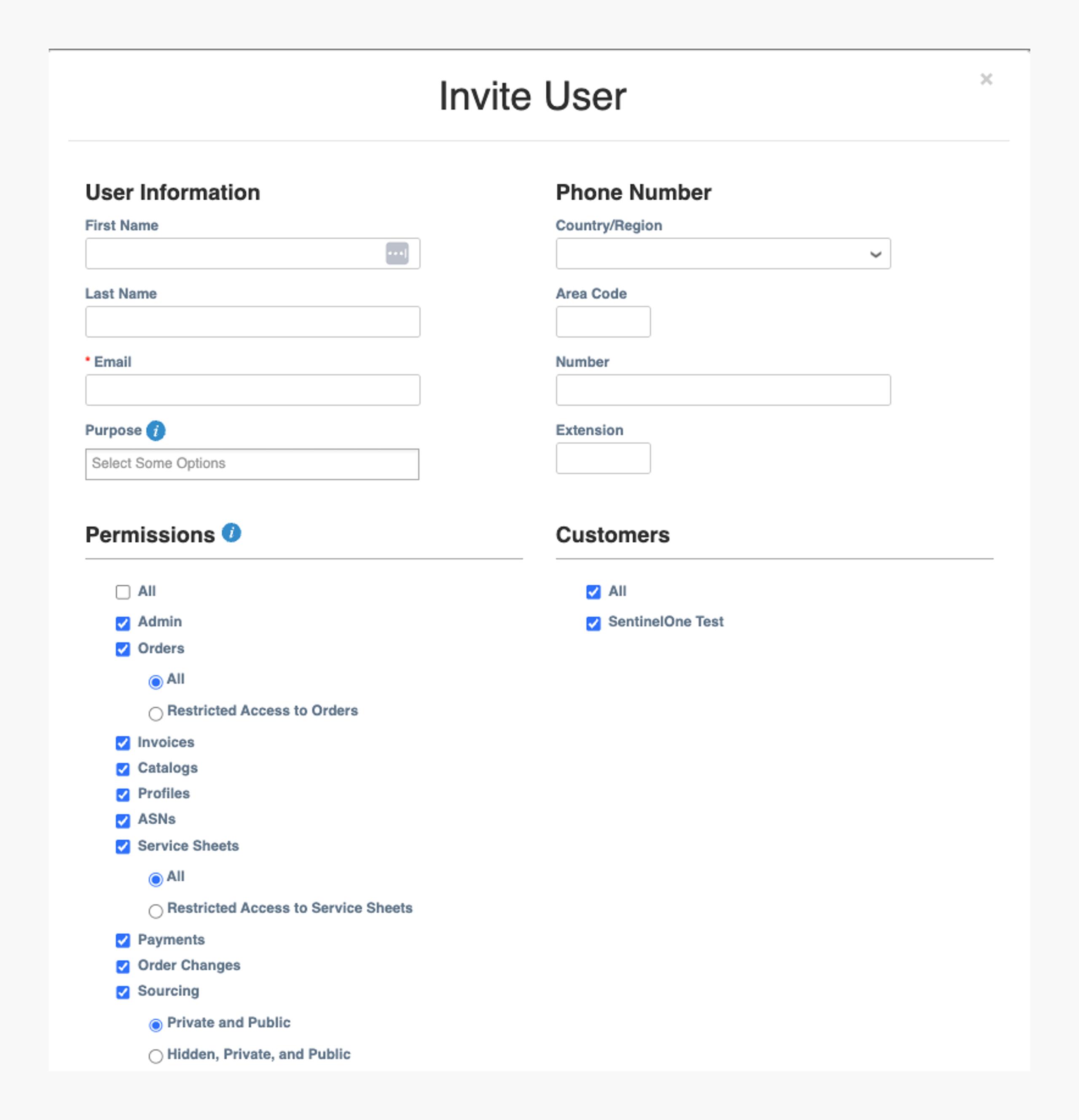
Admin users manage user permissions and customer access on the Setup page (Setup > Admin > Users), including limiting which customers and document types each user can access.
Click Invite User to add a new user to the CSP.
Click Edit under a specific user to modify permissions.
Orders
Purchase Order 101
A PO is required for all SentinelOne purchases, and all executed agreements will include a PO number
SentinelOne adheres to a No PO, No Pay policy. All invoices must be associated with a valid PO number to be accepted for review.
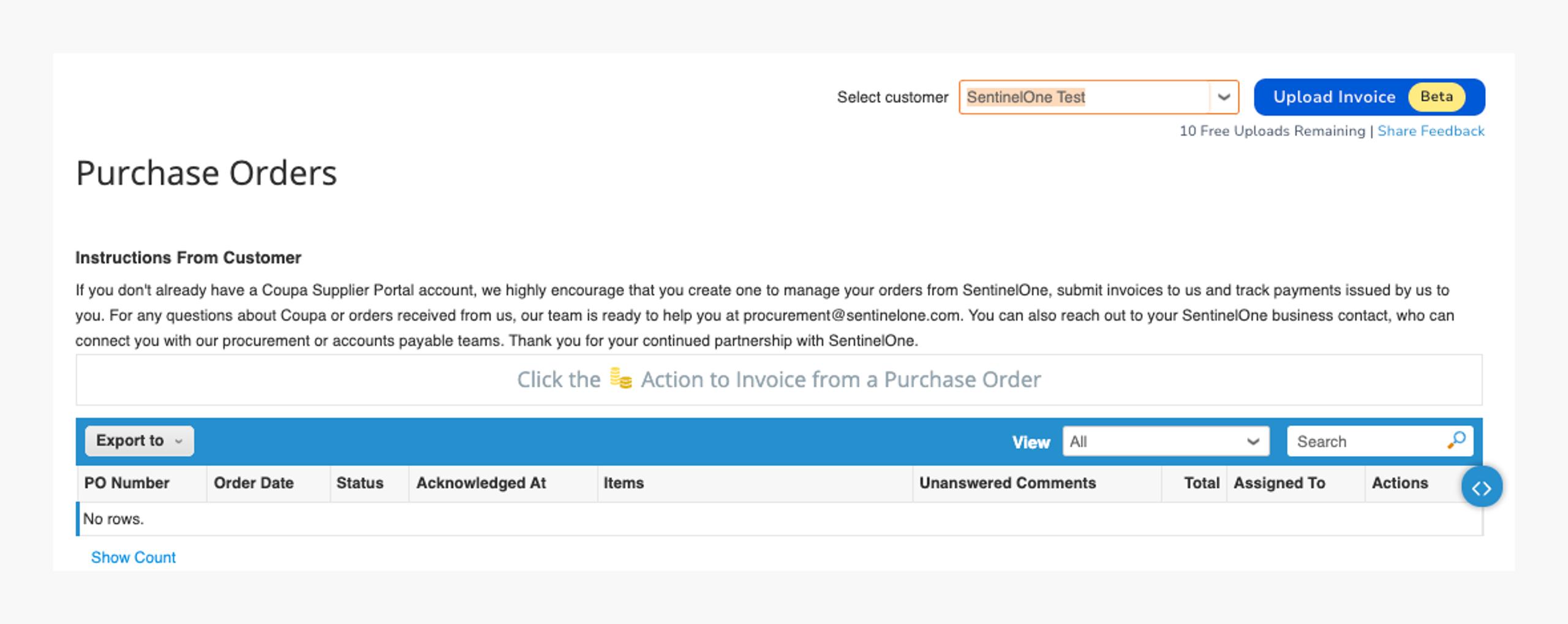
View and Manage Purchase Orders
Go to Orders > Orders and select SentinelOne from the Select Customer drop-down list.
PO Statuses and Meanings
Status | Description |
|---|---|
Issued | The PO was approved and sent to you |
Closed or Soft Closed | The remaining items on the PO are no longer needed or have been fulfilled, or the PO has been idle for a certain amount of time and has been automatically closed. |
Cancelled | The PO has been canceled and no longer needed. |
Invoices
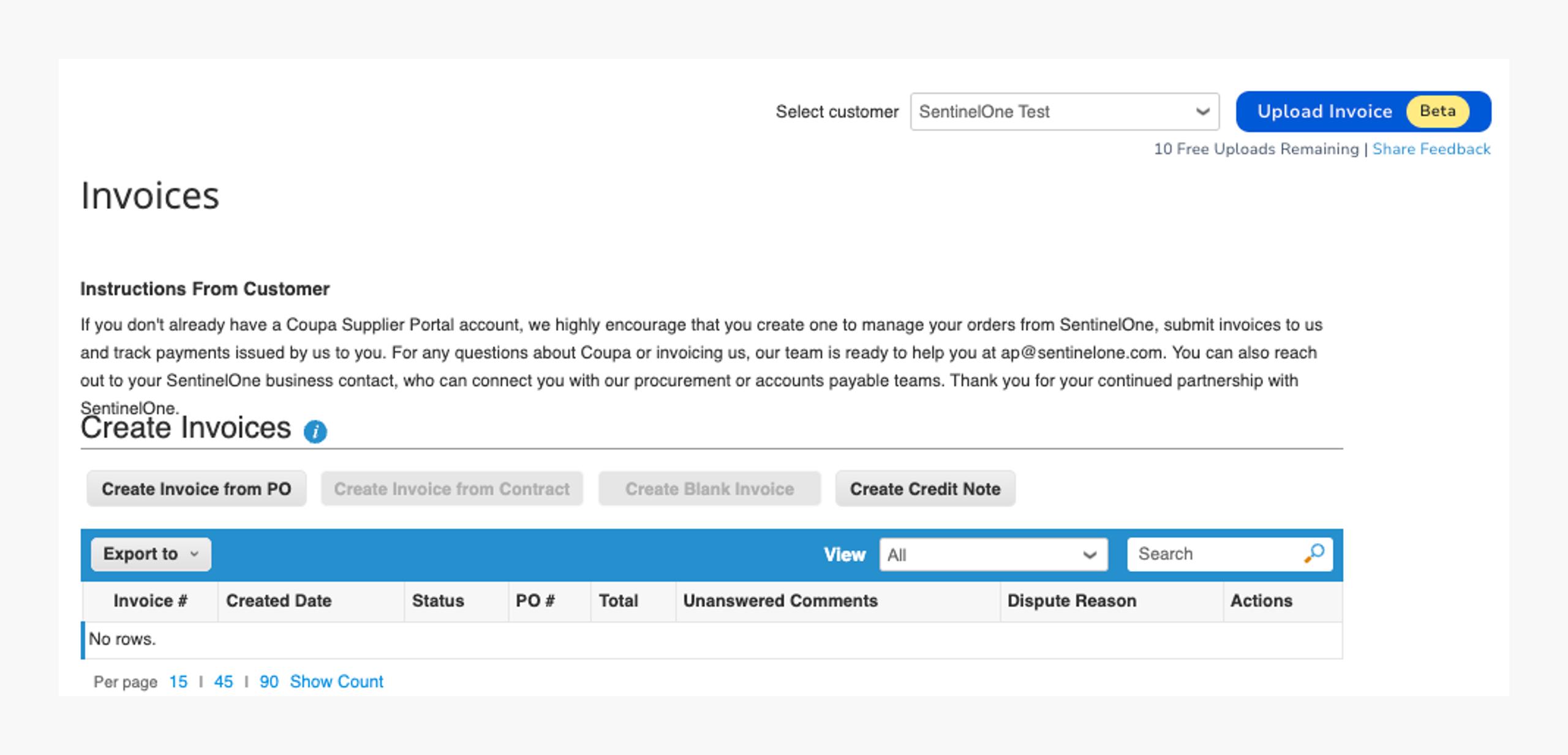
View and Manage Invoices
View and edit invoices sent to SentinelOne on the Invoices tab (select SentinelOne on the customer drop-down list).
Invoice Statuses and Meaning
Status | Description |
|---|---|
Approved | The invoice has been approved for payment. |
Disputed | Invoice has been disputed. See Section 6: Invoicing Guidelines for details. |
Draft | The invoice has been created but not yet submitted. |
Pending Approval | The invoice is currently pending review by SentinelOne. |
Processing | The invoice is being processed by AP and should be paid soon. |
Voided | Invoice voided for correction. |